
I Tried to Install Voice Typing on Linux. It Almost Broke Me.
I just wanted to talk to my computer.
That is it. I have been building this blog, writing content, sending emails, managing a Whop store — and typing everything out manually takes forever. I saw people using a tool called Wispr Flow on Mac and Windows. You hold a button, you speak, your words appear anywhere — in a chat, in a document, in a browser. Like magic.
I use Linux Mint. Wispr Flow does not run on Linux.
So I did what anyone would do: I asked an AI to help me find an alternative. What followed was one of the most humbling afternoons I have had since I started building online. I am going to tell you exactly what happened, what I learned, and what I actually use now — so you do not have to go through the same thing.

The Recommendation That Started It All
The AI suggested something called nerd-dictation. It explained that this was an offline voice typing tool that would let me press a keyboard shortcut anywhere and speak — just like Wispr Flow. It sounded perfect.
Then came the instructions.
Step one: open the terminal. The terminal is the black window on Linux where you type commands directly to the computer. No buttons. No menus. Just text. I had used it maybe twice before in my life. Step two: install Python dependencies. Step three: install something called vosk using a command called pip3. Step four: install git — another tool I had never heard of. Step five: use git to clone a repository. Step six: download a language model. Step seven: unzip the model. Step eight: move files into the right folder.
I am not a developer. I had no idea what half of those words meant. But I followed the instructions anyway, one line at a time, hoping it would eventually make sense.
Everything That Could Go Wrong
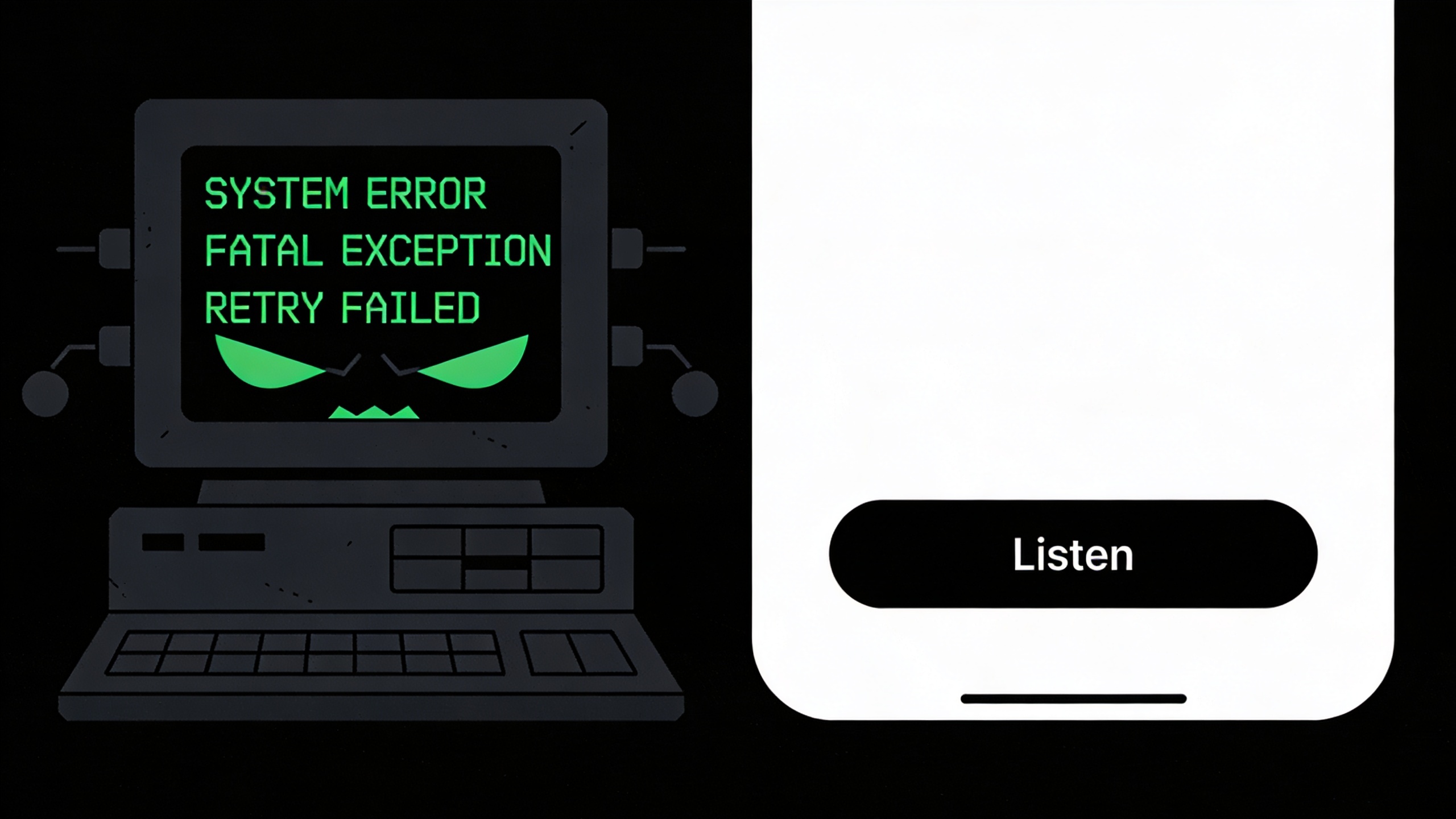
The first command worked fine. The second one immediately threw an error — something about an “externally managed environment.” The fix was to add --break-system-packages to the end of the command. That phrase alone made me uncomfortable. I was supposed to break something just to install a free tool?
I did it anyway. It worked. Moving on.
Then I found out git was not installed on my system. So I had to stop, install git separately, type Y to confirm, wait for it to finish, then go back and try the original command again.
Then the model download — the speech recognition file that makes the whole thing work — returned a 404 error. The file no longer existed at that web address. The AI gave me an alternative URL for a smaller model. That one worked, but it was a 40MB download that took a few minutes.
Then I typed a path wrong. One missing slash. The difference between ~/nerd-dictation and ~nerd-dictation is one character — a forward slash that I left out. The error message said the folder did not exist. I stared at the screen for two minutes trying to figure out what I had done wrong. I had to ask the AI to explain it.
By the time everything was finally installed, I had run more than twenty commands. I had no idea what most of them had done. I could not have explained to anyone what my computer had just been through. And I still was not sure the whole thing actually worked.
The Breaking Point
I sat back and looked at the screen. I said out loud: “I am a human, not a computer. I am not a developer either.”
That was the moment I stopped.
I had gone into this wanting to save time. Voice typing was supposed to make writing faster and easier. Instead, I had spent over an hour installing things I did not understand, fixing errors I did not cause, and ending up with a tool I was not even sure worked correctly.
The final test showed it had some accuracy issues with certain words. The setup was too technical to remember — I would never be able to repeat it or troubleshoot it if something broke. And the whole thing required two terminal windows to use: one to start, one to stop.
I asked the AI to help me uninstall everything. That took another round of commands.
What I Actually Learned
Here is the real lesson, and it has nothing to do with Linux being bad or AI being unreliable.
The lesson is this: before spending an hour trying to solve a problem, ask whether the problem can be solved with a simple tool.
I started with the wrong question. I asked “how do I install voice typing on Linux?” That question led me straight to the terminal. The right question was “is there an app that does this?” — because apps have installers, and installers do not require you to understand what is happening underneath.
Linux is a powerful operating system. Developers love it because of the control it gives them. But that control comes with complexity. Most tools for Linux are built by developers, for developers. The assumption is that you know what a terminal is and are comfortable using it. For someone who just wants to run a blog and talk to an AI — that assumption is wrong.
This is not a criticism of Linux. It is just a mismatch. Knowing the mismatch exists saves you a lot of time.
The Simple Solution

After uninstalling everything, I went looking for a proper app. I found VibeTyper.
VibeTyper runs on Linux Mint, Windows, and Mac. It installs from a standard file — no terminal, no commands, no manually downloading language models. You pay around $8 a month for the Pro plan. You hold Ctrl+Space, you speak, and your words appear wherever your cursor is. In this chat, in WordPress, in your email, in your community chat — anywhere.
What makes it different from the free tool I tried is the Magic Formatter feature. It does not just transcribe what you say — it cleans it up. Filler words get removed. Sentences get properly capitalized. Spelling gets corrected. If you have an accent or speak quickly, that matters a lot. Raw transcription tools repeat every “um” and “uh” and often struggle with non-native accents. VibeTyper handles it.
I downloaded it, ran the installer, held Ctrl+Space, and spoke a sentence. It worked in about thirty seconds.
That is the version of this story I wish had happened first.
The Rule I Have Now
Before installing anything on Linux, I ask one question: is there a browser version or a standard installer?
If yes — use that. If no — find a different tool. The terminal is not an option for me, and that is completely fine. There are almost always alternatives that do not require it. You just have to look for them before you start typing commands.
Voice typing on Linux is genuinely harder than on Windows or Mac. Wispr Flow does not exist here. Free tools require the terminal. That is a real limitation. But VibeTyper bridges that gap — it costs money, but my time costs money too. One hour in the terminal was worth far more than $8 a month.
If you are building an online business on Linux Mint and you want system-wide voice typing — press a key, speak, text appears anywhere — skip the free tools that require command-line setup. Go straight to VibeTyper. It works. It is simple. And it will not cost you an afternoon.
If you want to see how I run the rest of my business — the blog, the email list, the digital products — everything is inside The Playbook.
Sources:
VibeTyper
Wealth Diagram
Personal finance, passive income, and building wealth on your own terms.